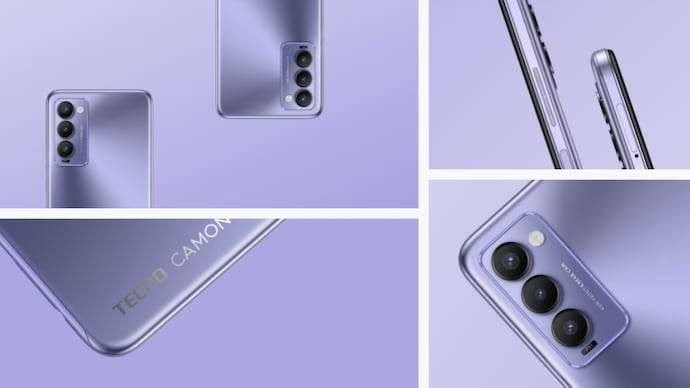

If you are experiencing a camera error on your Tecno phone, it can be really frustrating, especially when you need to capture important moments.
This guide will walk you through the most effective solutions to fix camera errors on Tecno phones, ensuring you can get back to taking photos without any issues.
Common Camera Errors on Tecno Phones
Camera errors on Tecno phones can manifest in different ways, such as the camera app crashing, a blank screen when opening the camera, or an error message that says “camera failed.” These issues can arise due to software glitches, hardware problems, or issues with third-party apps.
Solution to Fix Camera Errors
Here are some ways you can fix majority of the camera issues you may be experiencing on your Tecno Phone.

1. Restart Your Tecno Phone
One of the simplest yet effective solutions to fix a camera error. is to restart your phone. This action refreshes the phone’s system, potentially clearing out any temporary glitches that might be causing the camera to malfunction.
2. Clear Camera App Cache and Data
Over time, the camera app’s cache and data can accumulate, leading to performance issues. To clear the cache and data:
- Go to Settings > Apps > Camera.
- Tap on Storage and then select Clear Cache and Clear Data.
- Restart your phone and check if the camera is working.
3. Check for Software Updates
Outdated software can cause compatibility issues with the camera app. To ensure your phone is running the latest version:
- Go to Settings > System > Software Update.
- Download and install any available updates.
- After updating, restart your phone and try using the camera again.
4. Disable Third-Party Apps
Sometimes, third-party apps can interfere with the camera’s functionality. To check if this is the case:
Don't Miss This Guide

- Restart your phone in Safe Mode (usually by holding the down or up volume button and then pressing and holding “Power off” until the safe mode prompt appears).
- In Safe Mode, try using the camera. If it works, a third-party app is likely causing the issue. Uninstall recently installed apps to identify the culprit.
5. Reset App Preferences
Resetting app preferences can help resolve conflicts between system and third-party apps:
- Go to Settings > Apps.
- Tap the three-dot menu icon and select Reset app preferences.
- Confirm your action and check if the camera issue is resolved.
6. Perform a Factory Reset
If none of the above solutions work, you may need to perform a factory reset. This step should be taken with caution as it will erase all data on your phone:
- Backup your data.
- Go to Settings > System > Reset > Factory data reset.
- After resetting, set up your phone again and check if the camera is functioning properly.
7. Visit an Authorized Service Center
If the camera error persists after trying all the above steps, it may be due to a hardware issue. In this case, it is advisable to visit an authorized Tecno service center for professional assistance or use Carlcare.
Rounding Up on How Fix Camera Errors on Tecno Phones
By following these steps i have provided above, you should be able to resolve the camera error on your Tecno phone effectively. Also Ensure your phone is regularly updated and avoid unnecessary third-party apps, these will prevent your phone from future camera-related issues.