GuidesCafe
No Result
View All Result
GuidesCafe
No Result
View All Result
GuidesCafe
No Result
View All Result
Home Tech Guides

How to send disappearing messages on Signal

Want more privacy in your chats? Learn how to send disappearing messages on Signal and control how long your messages stay visible.

Ebeh Christopher by Ebeh Christopher
7 months ago
in Tech Guides
How to send disappearing messages on Signal
Share on FacebookShare on Twitter

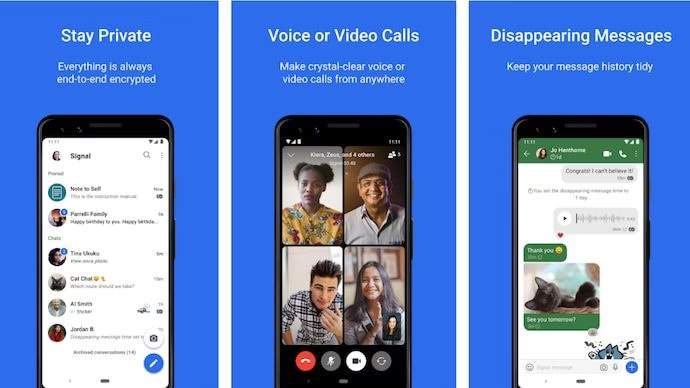
Privacy is the main reason many people switch to Signal. One of the app’s best features is disappearing messages. This option allows you to control how long your messages stay visible before they automatically delete themselves.

So if you are sharing sensitive information or you simply prefer a cleaner chat history, disappearing messages will give you more control over what stays in your conversations.

RelatedTopics

Signal vs Telegram: Privacy comparison

Signal vs Telegram: Privacy comparison

7 months ago

In this guide, I will show you step by step how to send disappearing messages on Signal and explain how this feature works.

What Are Disappearing Messages?

Disappearing messages are texts, photos, videos, or files that vanish after a set period. You decide the timer, and once the time is up, the content is automatically deleted from both your device and the recipient’s device.

This feature is useful if you:

  • Share private information you don’t want saved
  • Want to reduce clutter in your chats
  • Like extra peace of mind that messages are not stored forever

Remember, while disappearing messages improve privacy, there is always a chance someone could screenshot your chat before it disappears. Although Signal does notify you if a screenshot is taken.

How to Enable Disappearing Messages

Here is how to turn on disappearing messages in any Signal conversation:

Step 1: Open the Conversation

Launch the Signal app and tap on the chat where you want messages to disappear.

DONT MISS:  These 10 Secrets Apps can Massively Boost your Productivity

Step 2: Open Chat Settings

Tap the person’s name or group name at the top of the screen to open the conversation settings.

Step 3: Tap Disappearing Messages

You will see an option labeled Disappearing messages. Tap it.

Step 4: Choose Your Timer

A menu will appear with different timer options. You can pick anywhere from 1 second up to 1 week. For example:

  • 5 seconds
  • 10 seconds
  • 1 minute
  • 1 hour
  • 1 day

Select the time you prefer.

Step 5: Confirm and Start Chatting

Once you choose a timer, all new messages you send in this chat will disappear after the set time. You will see a small countdown icon next to each message showing how long it has left.

How to Turn Off Disappearing Messages

If you no longer want messages to disappear, you can turn the feature off any time:

  1. Open the conversation.
  2. Tap the name at the top.
  3. Tap Disappearing messages.
  4. Select Off.

From then on, new messages will stay in the chat until you or the other person deletes them.

How the Timer Works

It is important to know that the timer starts counting down after the recipient views the message. For example, if you set the timer for 10 seconds, the countdown begins the moment the other person opens the chat and sees the message. This design ensures the message does not expire before the person has read it.

DONT MISS:  Signal vs Telegram: Privacy comparison

Tips for Using Disappearing Messages Safely

  • Even with disappearing messages, the recipient can still take screenshots or photos of the screen.
  • Signal alerts you if a screenshot is taken, but it cannot prevent it.
  • If you need extra privacy, consider using Signal’s View Once Media for photos and videos that disappear immediately after viewing.
  • Disappearing messages only affect new messages. Older messages in the conversation will remain unless you delete them manually.

I’m about to disappear too

Disappearing messages are a powerful privacy tool that helps you keep your conversations secure and clutter-free. DoesnĀ“t matter if you are chatting about personal matters or just prefer messages that don’t stick around, Signal makes it easy to control what gets saved. Try enabling disappearing messages today and see how much more private your chats can feel.


Tags: Signal

Don’t want to miss the best from GuidesCafe?

  • Set us as a favorite source in Google Discover to see our latest updates first.
  • You can also add us as a preferred source in Google Search by clicking the button below.
G Add as a preferred source on Google
Previous Post

How to create a group chat on Google Messages

Next Post

How to back up your WhatsApp chats to Google Drive

Ebeh Christopher

Ebeh Christopher

I’m a Computer Science graduate, Web Developer, and Digital Marketer with over 14 years of experience creating easy-to-follow guides for students and learners. On GuidesCafe, I share step-by-step tutorials, exam tips, and educational updates like NYSC news, JAMB results, and scholarship opportunities to help readers make smarter academic and digital decisions.

Latest Posts

NYSCSaysitisReadytoFullyIncludeCorpsMembersWithDisabilities
Breaking News

NYSC Says it is Ready to Fully Include Corps Members With Disabilities

January 14, 2026

The National Youth Service Corps has announced that it is ready to formally include corps members with disabilities in the...

Read moreDetails
How to Create Your JAMB Profile

How to Create Your JAMB Profile

January 14, 2026
JAMBisAroundtheCorner HereAre3ThingsEveryCandidateMustPutinPlace

JAMB is Around the Corner: Here Are 3 Things Every Candidate Must Put in Place

January 13, 2026
NigeriaBoardingSchoolStudents

Is Sending Your Child to Boarding School Still Worth It in 2026? The Honest Answer Nigerian Parents Need

January 13, 2026
7provenwaystoimproveyourreadingskillsinschool28thatactuallywork292402479015324742071

7 Proven Ways to Improve Your Reading Skills in School (That Actually Work)

January 13, 2026
10budget friendlyphoneswithgoodcamerasin20268817263450185505317

10 Budget-Friendly Phones With Good Cameras in 2026

January 12, 2026
fgtointroduceuniqueidforwaecandnecocandidates whatitmeansforstudents6651812222988755526

FG to Introduce Unique ID for WAEC and NECO Candidates: What It Means for Students

January 6, 2026
HowtoCheckSpotifyWrapped2025 CompleteGuidewithNewFeatures

How to Check Spotify Wrapped 2025: Complete Guide with New Features

December 4, 2025
InfinixHot60iReview IsThisPhoneWorthYourMoneyin2026

Infinix Hot 60i Review: Is This Phone Worth Your Money in 2026?

December 2, 2025
Photo Credits: TechTokWithDee YT

Tecno Spark 30C Review: What This Budget Phone Actually Delivers in Nigeria

December 2, 2025
Load More
Next Post
How to back up your WhatsApp chats to Google Drive

How to back up your WhatsApp chats to Google Drive

How to set up two-step verification on WhatsApp

How to set up two-step verification on WhatsApp

Leave a Reply Cancel reply

Your email address will not be published. Required fields are marked *

Ā© 2024 - 2025. This Website was Designed by Ebeh Christopher | GuidesCafe is part of NextFrame Publishing Group.

Site Navigation

  • Home
  • About Us
  • Contact Us
  • Terms Of Use
  • Privacy Policy

Follow Us

No Result
View All Result
  • Home
  • Breaking News
  • Top Posts
  • Tech Guides
    • AI Productivity Tools
    • Android Tips & Tricks
    • Computers
    • Gaming Tips and Tricks
    • iPhone Tips & Tricks
    • Networks & Internet
    • Phones & Gadgets
    • Social Media Guides
  • Educational Guides
    • Universities
    • Polytechnics
    • JAMB
    • NYSC
    • WAEC
    • NECO
  • Job Guides
  • Our Informations
    • Contact Us
    • About Us
    • Privacy Policy
    • Terms Of Use

Ā© 2024 - 2025. This Website was Designed by Ebeh Christopher | GuidesCafe is part of NextFrame Publishing Group.