

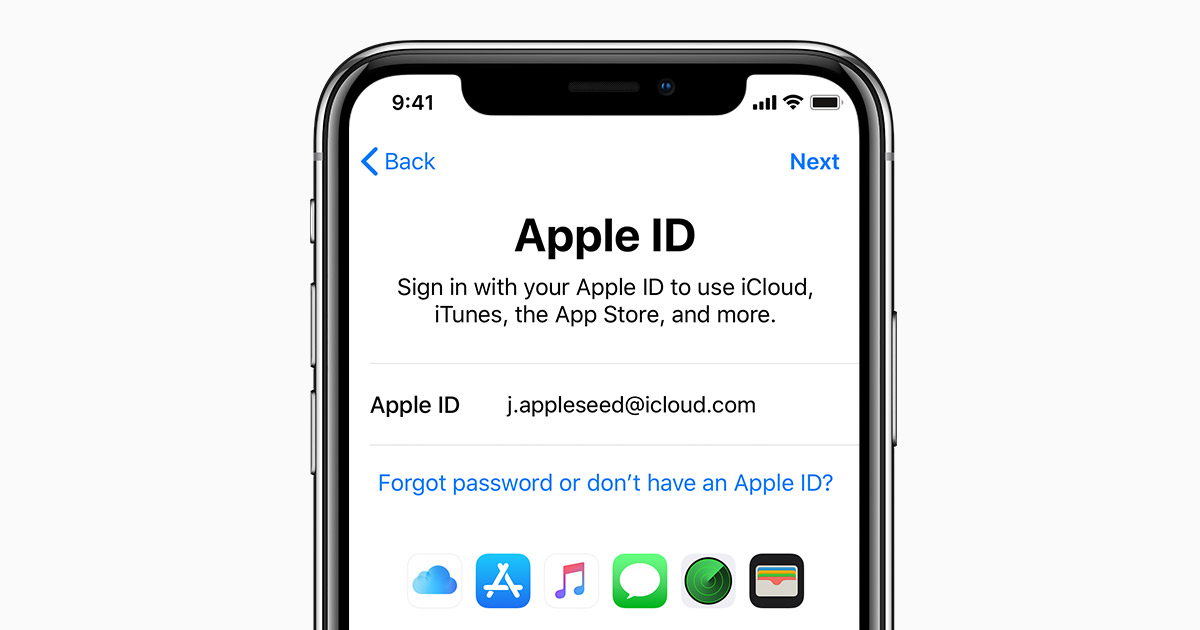
Apple won’t let an account with two-factor authentication sit with zero trusted phone numbers on file. That single rule is why the delete option next to your +234 number appears greyed out, missing or simply does nothing, and it’s the thing every guide skips over.
So to remove a Nigerian phone number from an Apple ID created abroad, you add the replacement first, verify it, and delete the old one after. Reverse that order and you’ll spend twenty minutes convinced the account is broken. It isn’t.
Three different numbers, and people mix them up constantly
Before you touch anything, work out which one you’re actually trying to get rid of, because the fix is completely different for each and following the wrong guide will waste your afternoon.
A trusted phone number is the one that receives your sign-in verification codes. This is what most people mean and it’s what the rest of this guide covers. A reachable at number is different, it’s what iMessage and FaceTime use so people can reach you at that number rather than your email, and it lives in a completely separate part of Settings. Then there’s the case where the phone number is the Apple Account itself, which happens if the account was created with a number instead of an email address. You can’t remove that one, you’d have to change the account’s sign-in address entirely.
If the Nigerian number keeps appearing when you send messages, that’s the second kind and you’ll want the iMessage section further down. If you’re getting verification texts you can’t receive, it’s the first.
The actual steps, assuming you can still sign in
Apple renamed Apple ID to Apple Account a while back, so if the menus in older guides don’t match what you’re seeing, that’s why.
On an iPhone or iPad, open Settings and tap your name at the top, then Sign-In & Security, then Two-Factor Authentication. You’ll see your trusted devices and phone numbers listed. Tap Add a Trusted Phone Number, enter your device passcode, pick the right country code, put in the number you want to use going forward and choose whether Apple should text it or call it. Verify it with the code that arrives.
Once that new number shows as verified, go back to the same screen, tap Edit above the list of numbers, and remove the Nigerian one. Tap Done.
On a Mac it’s System Settings, your name, Sign-In & Security, Two-Factor Authentication, and the same add-then-remove sequence. On the web, go to account.apple.com, sign in, open Sign-In and Security, then Account Security, and you’ll find the Trusted Phone Number section with the same controls.
The web route is the one to use if you’ve moved off Apple hardware entirely, since it doesn’t need a device in your hand.
The one hour wait that makes people think it failed
If you’ve got Stolen Device Protection switched on, and a lot of people do without remembering they turned it on, Apple applies a security delay to changes like this whenever you’re somewhere it doesn’t recognise as a familiar location.
What that means in practice is you authenticate with Face ID, wait an hour, then authenticate again before the change goes through. It looks like a failure if nobody’s told you to expect it. If you’re at home or at your usual workplace the delay usually doesn’t apply, so doing this from a familiar spot saves you the wait.
When the Nigerian line is already dead
This is the harder version of the problem, and it’s common here because SIM cards get recycled and reassigned once a line goes unused for long enough.
Adding a new trusted number normally needs Apple to verify you first, and it’ll try to do that by sending a code to a number already on the account. If that’s the dead Nigerian line, you’re going in circles. The way out is a trusted device. If you have any iPhone, iPad or Mac still signed into the account, that device can approve the change directly, no text message required. Check every Apple device in the house before you conclude you’re stuck, including old ones in a drawer.
If there’s no signed-in device anywhere and no working number, you’re into Apple’s account recovery process, and that’s slow by design. It takes days, sometimes longer, and Apple won’t shorten it no matter who you speak to. Start it as early as you can and don’t keep restarting it, because new attempts can reset the clock.
One thing worth doing right now if the phone itself went missing rather than just the line: go through the proper steps for tracking and locking a lost phone before anything else, because whoever has that handset may be receiving your codes.
Getting it out of iMessage and FaceTime too
Removing a trusted number doesn’t stop iMessage using it, which surprises people. Those are managed separately.
Go to Settings, then Messages, then Send & Receive, and you’ll see a list under the heading about where you can be reached. Untick the Nigerian number there. Do the same under Settings, then FaceTime. If you’ve left iPhone altogether and messages from other iPhone users are vanishing into a phone you no longer use, Apple has a deregistration page for exactly that situation, which unhooks the number from iMessage on their end.
If you’re switching that line over to an eSIM or moving it to a different handset in the process, it’s worth reading up on how eSIM activation works with Nigerian networks first, since the number needs to be live somewhere for verification to work at all.
Do you also want to move the account’s country?
Worth separating these two things, because a lot of people who came here to remove a number are really trying to solve a different problem.
Your trusted phone number and your Apple Account’s country setting have nothing to do with each other. A +234 number works perfectly well as the trusted number on a US or UK account. Removing the Nigerian number won’t change which App Store you see, what currency you’re charged in, or which apps are available to you.
If the store region is what you actually want to change, that’s a bigger job. Apple wants your account balance at zero before it’ll let you switch, you’ll need to cancel active subscriptions or wait for them to lapse, and you’ll need a payment method that’s valid in the region you’re moving to. Some content you’ve bought may also stop being available afterwards. That last part is the one people regret.
Getting a foreign card to behave on a Nigerian account, or the reverse, has always been the sticking point, and it’s the same wall people run into handling international payments from here generally. Sort out the payment side before you start the region change, not halfway through it.
While you’re in there
Add a second trusted number belonging to someone you trust completely, a partner, a sibling, a parent. Apple actively recommends it and almost nobody does it. If your only trusted number ever dies the way the Nigerian one did, that second number is the thing that saves you from a week of account recovery.
Also make sure at least one Apple device stays signed into the account, and check the number list every time you change SIM. Five minutes now against several days later is not a difficult trade to justify.


Join the conversation