

Most people who end up unhappy with a UK used laptop didn’t buy a bad machine. They just didn’t check the right things before handing over money, and by the time the problem shows up the seller has moved on.
Here’s the full inspection, in the order worth doing it. Give yourself twenty minutes with the laptop before you pay.
Some links in this article are affiliate links. If you buy through them we may earn a small commission at no extra cost to you.
1. The Processor Generation, Not Just the Name
“Core i5” covers about a decade of very different chips, so the generation is the number that actually matters.
Press Windows key + R, type dxdiag and hit enter. The processor line shows the full model number. You can also find it under Settings, System, About.
Read the generation from the digits after the dash. An i5-8250U is 8th gen, an i5-7200U is 7th gen, an i7-10510U is 10th gen.
Aim for 8th generation or newer. That’s the cutoff for official Windows 11 support, and since Windows 10 stopped getting security updates in October 2025, anything below it is on borrowed time. An 8th gen i5 will also beat a 6th gen i7 in daily use, so generation matters more than the i5 versus i7 question.
Avoid Celeron, Pentium and Atom entirely.
2. RAM, and Whether You Can Add More
8GB is the working minimum. 4GB will struggle with a browser and Zoom open at the same time.
Open Task Manager with Ctrl + Shift + Esc, go to the Performance tab and click Memory. It shows the total installed, the speed, and crucially how many slots used out of how many available.
That slots figure tells you whether a 4GB machine can be upgraded cheaply later or whether the RAM is soldered to the board and you’re stuck with it. Ask before assuming.
3. SSD, Never HDD
In the same Performance tab, look at the disk entry. It’ll be labelled SSD or HDD.
An HDD will make a Core i7 feel slower than a machine half its age. Boot times go from fifteen seconds to three minutes. If a listing mentions a 1TB HDD as if it’s a selling point, walk away. 256GB SSD beats 1TB HDD every single time.
4. Real Battery Health, Not the Seller’s Estimate
This is the most useful thing on this page, and almost nobody does it.
Open Command Prompt and type:
powercfg /batteryreportIt saves an HTML file and tells you where. Open it in a browser and look for two numbers: Design Capacity and Full Charge Capacity.
Design capacity is what the battery held when new. Full charge capacity is what it holds now. If full charge is 70 percent or more of design, that’s decent for a used machine. Below 50 percent and you’re buying a laptop that needs to stay plugged in, or a ₦30,000 to ₦50,000 replacement.
The report also shows cycle count, which is how many times the battery has been fully charged and drained. Higher means more wear.
This takes thirty seconds and turns a vague conversation into a number. If a seller refuses to let you run it, that itself is your answer.
5. Is Windows Actually Activated?
Go to Settings, System, Activation. You want to see “Windows is activated with a digital licence.”
Plenty of imported machines arrive with cracked or temporary activation that expires and starts nagging you weeks later. Ex-corporate laptops sometimes carry volume licences tied to a company that no longer exists.
While you’re on that screen, check the Windows version too. If it says Windows 10 and the processor is 8th gen or newer, you can upgrade free. If it says Windows 11 but the processor is 7th gen or older, it’s been installed using a workaround and may stop receiving updates.
6. BIOS Access
Restart and tap F2, F10 or Delete depending on the brand to enter the BIOS.
If it asks for a password nobody has, that’s a serious problem. A locked BIOS on some business models can’t be cleared without the manufacturer, and it blocks you from reinstalling Windows or changing boot settings. Ex-corporate laptops are the ones most likely to have this.
Test it in front of the seller rather than discovering it at home.
7. Every Key, Properly
Open Notepad and type across the entire keyboard, including the number row, function keys and arrows.
Watch for keys that don’t register, keys that double type, and sticky keys. A single dead key becomes maddening within a week.
Also check the layout. Many imported units have US keyboards with no naira sign, which is a small thing you’ll notice every time you write a price. Then test the touchpad, including two-finger scroll and both click buttons.
8. The Screen, Including Resolution
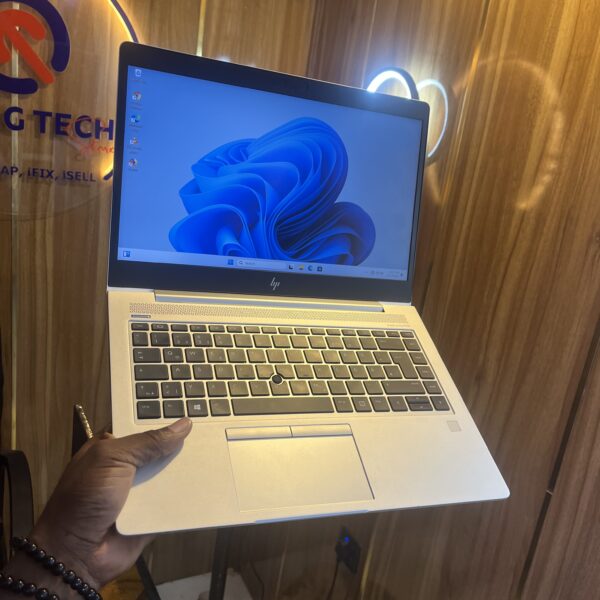
Open a plain white image full screen, then a plain black one. Dead pixels, dark patches, backlight bleed and pressure marks all show up immediately against solid colours in a way they don’t on a desktop wallpaper.
Then check the resolution under Settings, System, Display. Many older business laptops are 1366 x 768, which feels cramped for spreadsheets, coding and anything with two windows side by side. 1920 x 1080 is what you want, and it’s worth paying a little more for.
Small scuffs on the lid are normal and fine. Screen faults are not.
9. Ports, Webcam and Wireless
Bring a USB flash drive and a pair of earphones with you, and test:
- Every USB port, one at a time
- The HDMI or display output if you can
- The headphone jack
- The webcam and microphone, using the Camera app and Voice Recorder
- WiFi, by connecting to a hotspot
- Bluetooth, by pairing your phone
- The SD card slot if there is one
A dead webcam matters more than people expect if you take video calls for work.
10. Hinges, Body and Heat
Open and close the lid several times. It should feel firm throughout, not loose or grinding, and the screen shouldn’t wobble when you type. Cracked hinges are one of the most expensive repairs on a laptop and one of the most common faults on consumer models.
Press gently around the palm rest and base for flex or creaking, which suggests the body has been opened or dropped.
Then let it run for ten minutes with a few browser tabs open. Listen to the fan and feel the base. Constant loud fan noise or a very hot chassis at light load usually means the thermal paste is dried out or the fan is clogged with dust. Both are fixable, but factor in a service.
11. The Charger
Confirm the original charger is included and that it’s the right wattage for the machine. Generic replacements can undercharge a laptop, so it drains while you’re using it even when plugged in.
Plug it in and confirm Windows actually shows it charging. Original chargers for business laptops cost real money to replace.
12. Warranty, and What Happens If It Fails
A seller willing to stand behind a machine for even 30 days is telling you something. One who won’t is telling you something too.
Ask specifically: how long, what it covers, and what the process is. Get it in writing, even if that’s just a WhatsApp message you keep.
It’s also worth checking the serial number on the manufacturer’s support site. HP, Dell and Lenovo all have warranty lookup tools, and occasionally an ex-corporate machine still has months of manufacturer coverage left. It’ll also confirm the real original specs, which is a useful cross-check against what you’re being told.
If you’d rather buy somewhere that tests units before shipping, you can check UK used laptops from Shopinverse, which come with a 30 day limited warranty.
Buying Online Without Getting Burned
Most of the checks above need the laptop in your hands, so online buying needs different protections.
- Never pay in full before inspection. For marketplace sellers, insist on payment on delivery, or an escrow arrangement.
- Ask for a video of the laptop running, showing the dxdiag screen and the battery report.
- Meet in a public place in daylight if you’re buying from an individual, and bring someone with you.
- Read the return policy before paying, not after. Know how many days you have and who covers return shipping.
- Be sceptical of prices well below market. Fake specs, dying batteries and hidden faults are the usual explanation. Ask directly why it’s cheap and listen to how the answer lands.
Our guide on where to buy UK used laptops reliably covers vetting sellers, and what a good UK used laptop costs gives you the price bands to judge a deal against.
Save 5 Percent at Shopinverse
Use coupon code CHRISTOPHEREBEH at checkout for 5 percent off. Apply it before payment. You can buy UK used laptops from Shopinverse here.
If you only remember three things: check the processor generation, run the battery report, and never pay before you’ve had the laptop in your hands. Those three cover most of what goes wrong, and the whole inspection takes less time than the trip to the market did.








Join the conversation